
How to Choose a Free Ecommerce HTML Template
A free ecommerce HTML template gives you a working storefront without the cost of a custom build. You get a product grid, a cart page, and a checkout layout in clean, editable code. This guide shows you what to look for in a template and how to pick one that fits your project.
What pages should a free ecommerce template include?
A functional store starts with more than a single product listing. A template ready for a real business includes at least four distinct page layouts, each serving a clear role in the customer journey.
When you browse the collection at freeliquidtemplates.com, open the live preview and look for these specific screens before you download:
- Product grid or catalog page. This is the main shop view where customers filter and scan multiple items. A clean grid with consistent image sizes, clear product names, and visible prices helps visitors compare options without confusion.
- Single product page. Every item needs its own detailed view with a large image gallery, a size or color selector, an add-to-cart button, and a description block. This page is where the buying decision happens, so the layout must keep the purchase action prominent.
- Shopping cart page. The cart shows a summary of chosen items, quantities, and the subtotal. A usable template includes quantity update controls, a remove-item function, and a clear path toward checkout, so nothing blocks the user mid-flow.
- Checkout page. A checkout-ready template provides form fields for shipping and billing details, an order summary, and a visible payment method placeholder. The structure should be linear, without distractions that pull the customer from completing the order.
How do I check if the code is clean and editable?
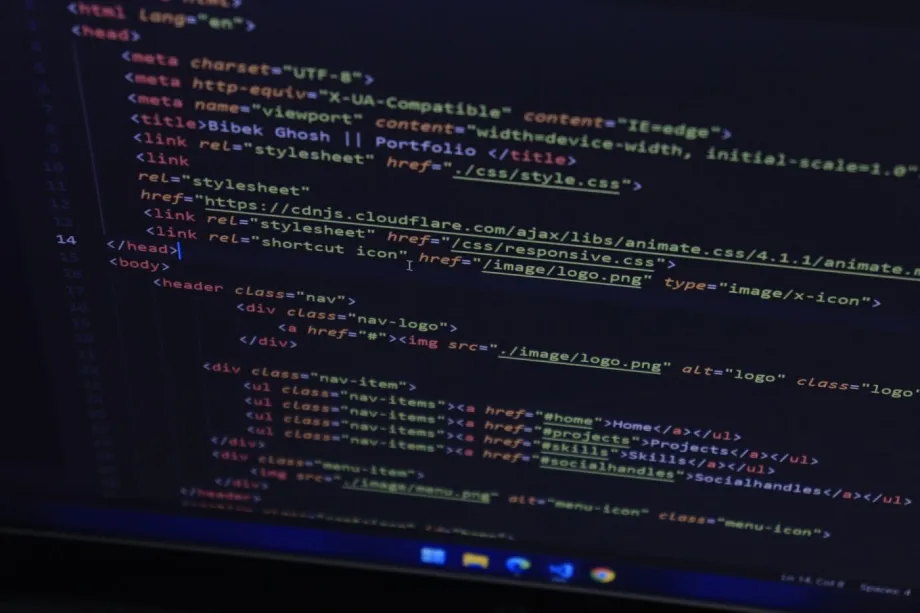
Open the HTML file in a text editor and look at the structure. Clean code uses consistent indentation so you can see where a section begins and ends. Tags are written in lowercase and attributes are quoted, for example class="product-card" not class=product-card. An easy-to-work-with template keeps HTML for content, CSS for styling, and JavaScript for behavior in separate files. You should not find inline styles like <div style="color:red"> scattered through the markup.
Look for descriptive class names that tell you what an element does. Names like .product-grid, .cart-item, and .checkout-summary let you find and edit sections quickly. A template built with generic names like .box1 or .col-left forces you to trace every rule through the CSS file to understand what it controls. Comments in the code are another sign of a maintainable template. A few lines explaining the grid system or the cart markup save you time when you customize the layout.
Does the template need to be mobile-ready?
Yes. Over half of ecommerce traffic now comes from phones, so a template that does not adapt to smaller screens will lose sales. A mobile-ready layout rearranges columns into a single stack, scales images to fit the viewport, and enlarges touch targets such as buttons and menu links.
You can test responsiveness right in your desktop browser. Open the template's demo page, press F12 to open developer tools, and click the device toolbar icon. Switch between a few preset phone sizes, such as an iPhone or a Pixel. Watch how the product grid behaves: two or three columns should collapse into one or two without horizontal scrolling. Tap targets, meaning buttons and links, should be at least 48 by 48 CSS pixels and not overlap.
Common problems to look for on a phone screen include text that overflows its container, images that stay fixed at desktop width, and menus that become impossible to tap. A navigation that relies on hover states will break on a touchscreen, so the template should offer a hamburger menu or a similar tap-based toggle. Check the cart summary and checkout fields as well; long forms need to fit without forcing a user to pinch and zoom.
What checkout elements should the template have?
A checkout-ready template includes three structural blocks, so you do not have to build them from scratch. The first is a clearly defined form for shipping and billing details with labeled fields for name, address, city, ZIP code, phone number, and email. The second is an order summary area that shows product names, quantities, individual prices, and the total. The third is a payment section with space for card number, expiration date, and CVV input fields.
Look for templates that keep these blocks visually separated, typically with the form on the left and the summary on the right on wider screens. The layout should collapse into a single column on mobile without hiding any fields behind accordions or tabs.
A practical checkout template also includes these standard elements:
- A prominent button labeled "Place Order" or "Complete Purchase" that stands out from the rest of the page
- A link back to the cart so the customer can review or edit items before finalizing
- Checkboxes for optional steps such as "Save this information for next time" or "Sign up for updates"
- Trust indicators near the payment fields, such as SSL badge placeholders and accepted card icons
- A shipping method selector with at least two options, like standard and express, each showing a cost
- A promo code or gift card input field placed above the order total
Can I use a free template with a CMS or backend?
A static HTML template becomes a functional store only when you connect it to a shopping cart and a content management system (CMS). The template itself holds the layout, colors, and fonts. You supply the logic by integrating it with a platform such as Shopify, WooCommerce, or a custom backend.
For Shopify, you convert the static HTML into Liquid template files, mapping the product grid and cart sections to Shopify’s object variables. With WooCommerce, you wrap the template in a WordPress theme structure and add the necessary PHP hooks inside the product loop and mini-cart. A custom backend works the same way: you replace static placeholder text with dynamic data from your database or API.
Pick a template where the product cards, cart summary, and checkout flow are marked up as clear, separate blocks. A div with a class such as .product-card is much easier to hook into a CMS loop than a wall of nested tags. Templates that already show a mini-cart and a quantity selector save you from writing those components from scratch.
How do I avoid templates with broken or outdated code?
A template can look perfect in a screenshot and fall apart the moment you edit it. Start with the HTML validator at validator.w3.org. Paste the raw source of the template’s index page and look for unclosed tags, duplicate IDs or deprecated attributes. A clean template shows zero errors or only minor warnings about trailing slashes.
Next, examine the layout engine. Open the main stylesheet and search for display: grid or display: flex. These are modern layout methods that produce predictable results across browsers. If the file relies on float and clear for column placement, the template was likely built years ago and will fight you when you try to restructure the product grid.
Check JavaScript dependencies with four quick tests:
- Open the browser console. A production-ready template should not log errors or warnings on a fresh page load.
- Look for jQuery. If the template loads a full jQuery library just to toggle a mobile menu, the author has not updated their approach since 2015.
- Search the scripts for
vardeclarations. Modern code usesconstandlet; widespread use ofvarsuggests the JavaScript has not been maintained. - Check if the cart interaction breaks with JavaScript disabled. A well-coded template degrades gracefully and still shows product information without scripts.
Frequently asked questions
Are free ecommerce HTML templates safe to use?
Yes, if you download them from a site that reviews its templates. Look for clean code without hidden scripts or obfuscated JavaScript. Open the HTML file in a text editor and scan for links you do not recognize before you put the template live.
What is the difference between a template and a theme?
A template is a set of static HTML pages you edit by hand. A theme is built for a specific platform like Shopify or WordPress and includes its own settings panel. A free HTML template gives you full control over the code but requires you to connect the backend yourself.
Do free templates work with payment gateways?
The template provides the front-end form and layout. You still need to connect a payment processor like Stripe or PayPal through your backend code. The template should include the correct input fields and a summary block so the integration is straightforward.
Can I sell products with just an HTML template?
You can display products and a cart layout, but you need a backend or a service like Snipcart to handle inventory, orders, and payments. The template gives you the storefront. The backend handles the transactions.